
Shopping Cart
There are no more items in your cart
To collaborate with CyrusCrafts as a supplier, you first need to create a dedicated supplier account on the website. This step-by-step guide will walk you through the registration process, helping you easily enter the required information and submit your request.
By following the steps below, your account will be created in the shortest possible time, and after review and approval, you will gain access to the supplier panel.
Step 1: Create an Account on the Website
First, you need to create an account on the CyrusCrafts website.
To do this, click on Login in the header section of the site, then select Create a New Account.
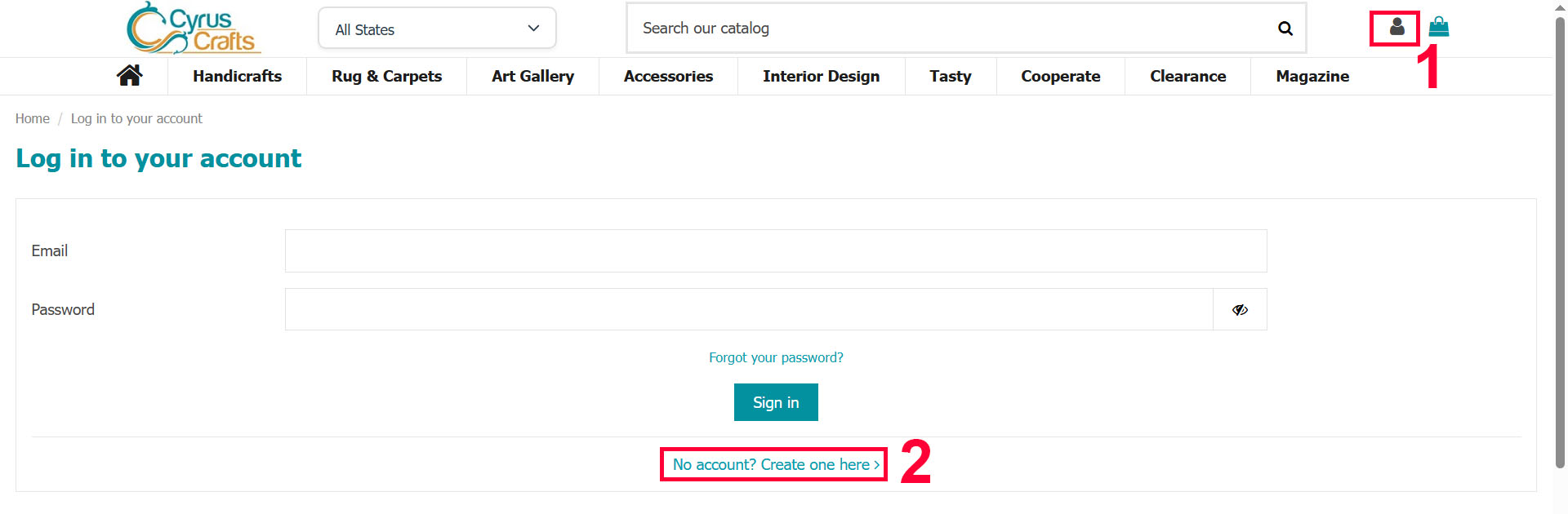
In the registration form, fill in all the required information completely to finalize the sign-up process.
Important Note:
It is recommended to complete all fields. While adding your Instagram page is not mandatory, it is highly suggested. The phone number you provide should preferably have access to Telegram or WhatsApp to facilitate faster communication.
Step 2: Submit Your Supplier Request
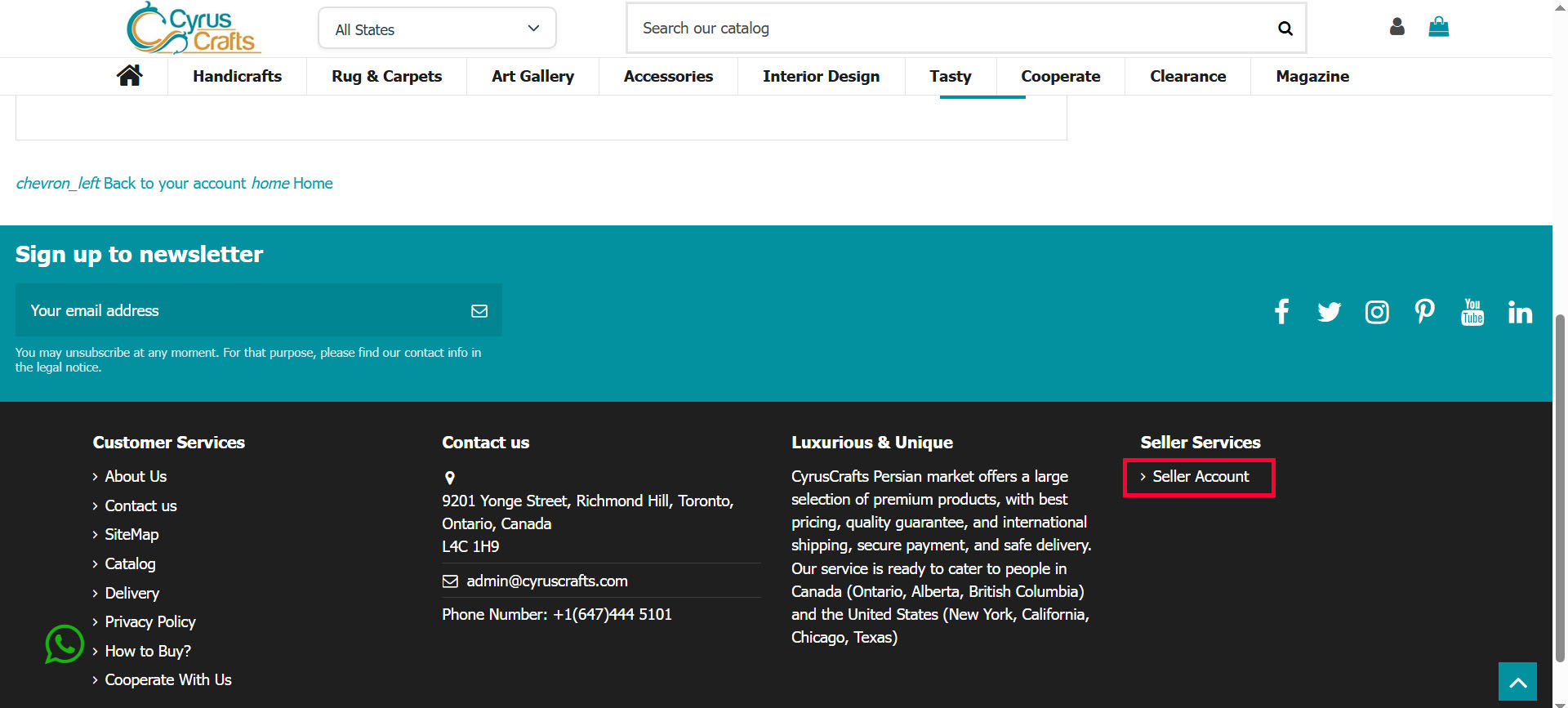
After completing the registration, go to the Supplier Account section via the footer of the website.
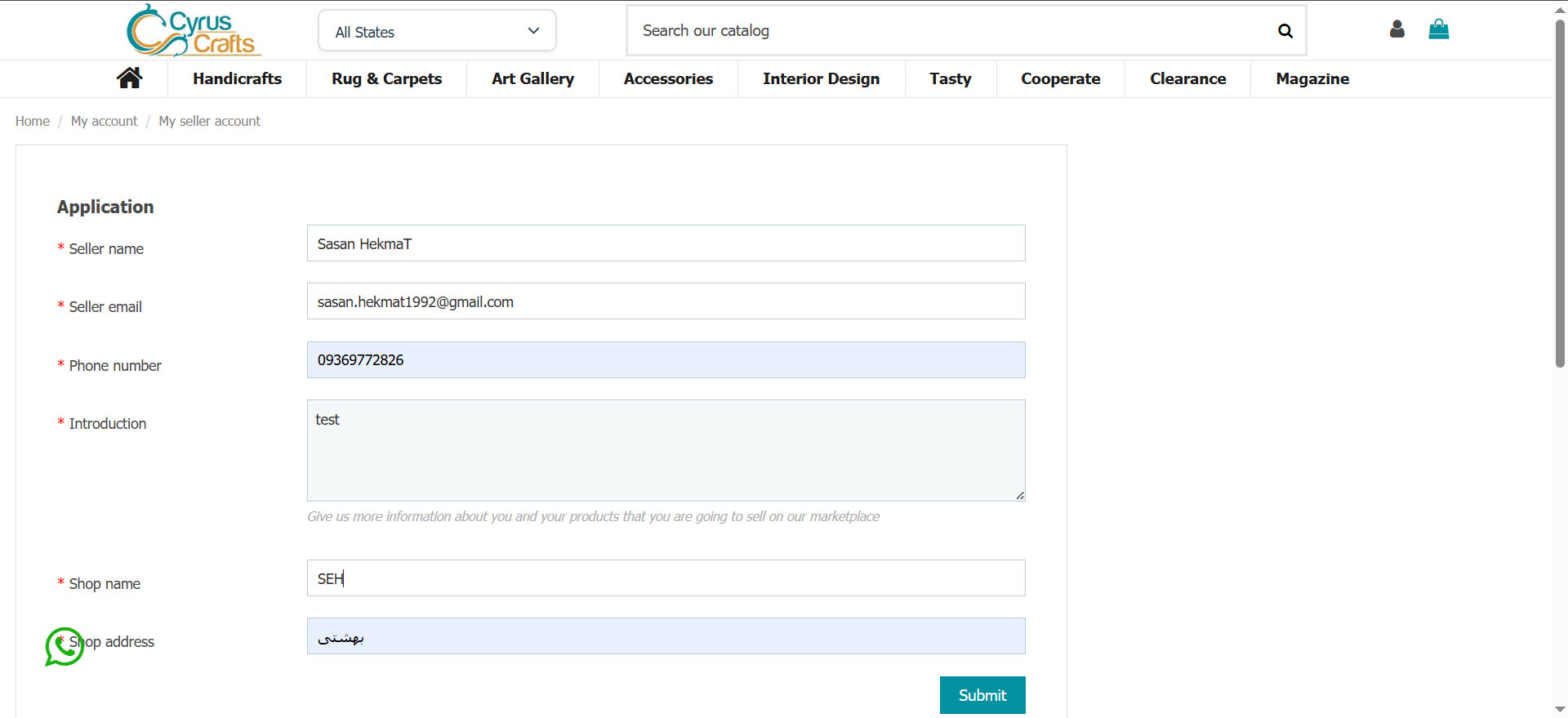
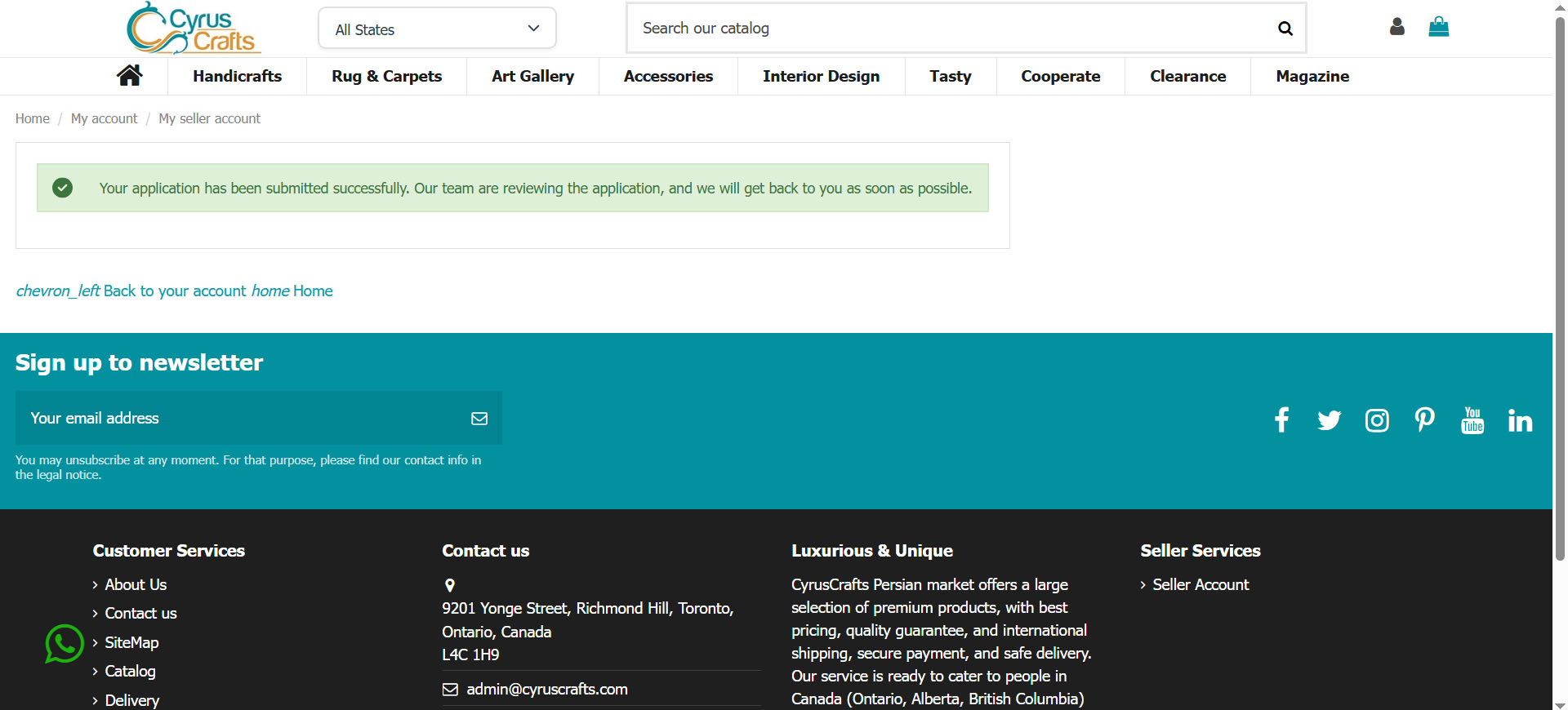
In this section, fill out the supplier request form and submit your application. Once submitted, your information will be reviewed, and the results will be communicated to you through the contact details you provided.
Step 3: Account Review and Approval
After submitting your information, please wait for your account to be reviewed and approved by our team.
Once you receive the initial approval, log in to your account panel and complete your store information.
After completing this step, your store information will also be reviewed by our team. Once the final approval is granted, you will have full access to all features of the supplier panel.
Step 4: Accessing the Panel and Managing Activities
After completing your information and receiving final approval, you can manage all your activities through the Supplier Account.
Upon entering the supplier panel, you will see a dashboard similar to the image below, providing access to various sections for managing your store.
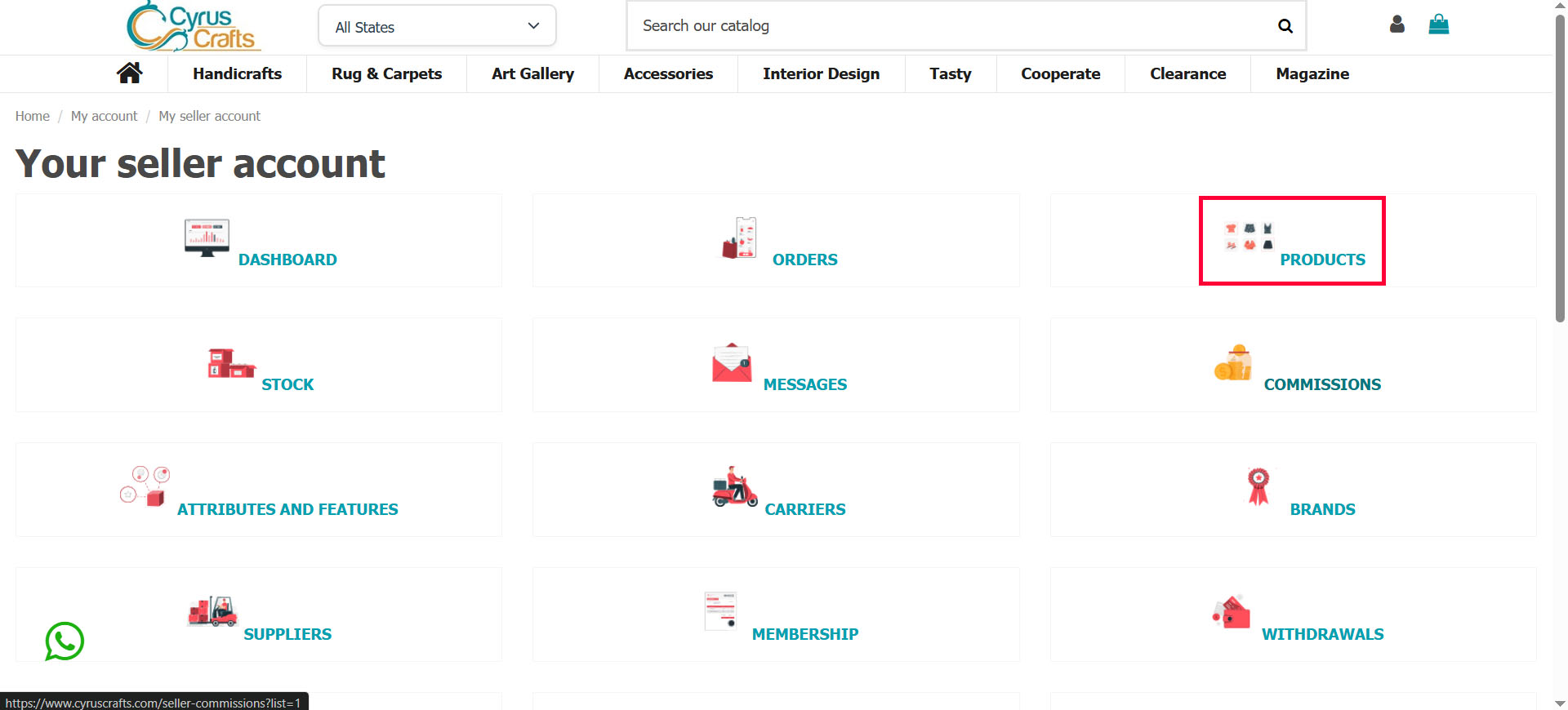
To manage your products, go to the Products menu and access your store's product section. Here, you can perform necessary actions such as adding, editing, or reviewing your products.
Step 5: Adding a New Product
To add a new product, click on Add New Product in the Products section.
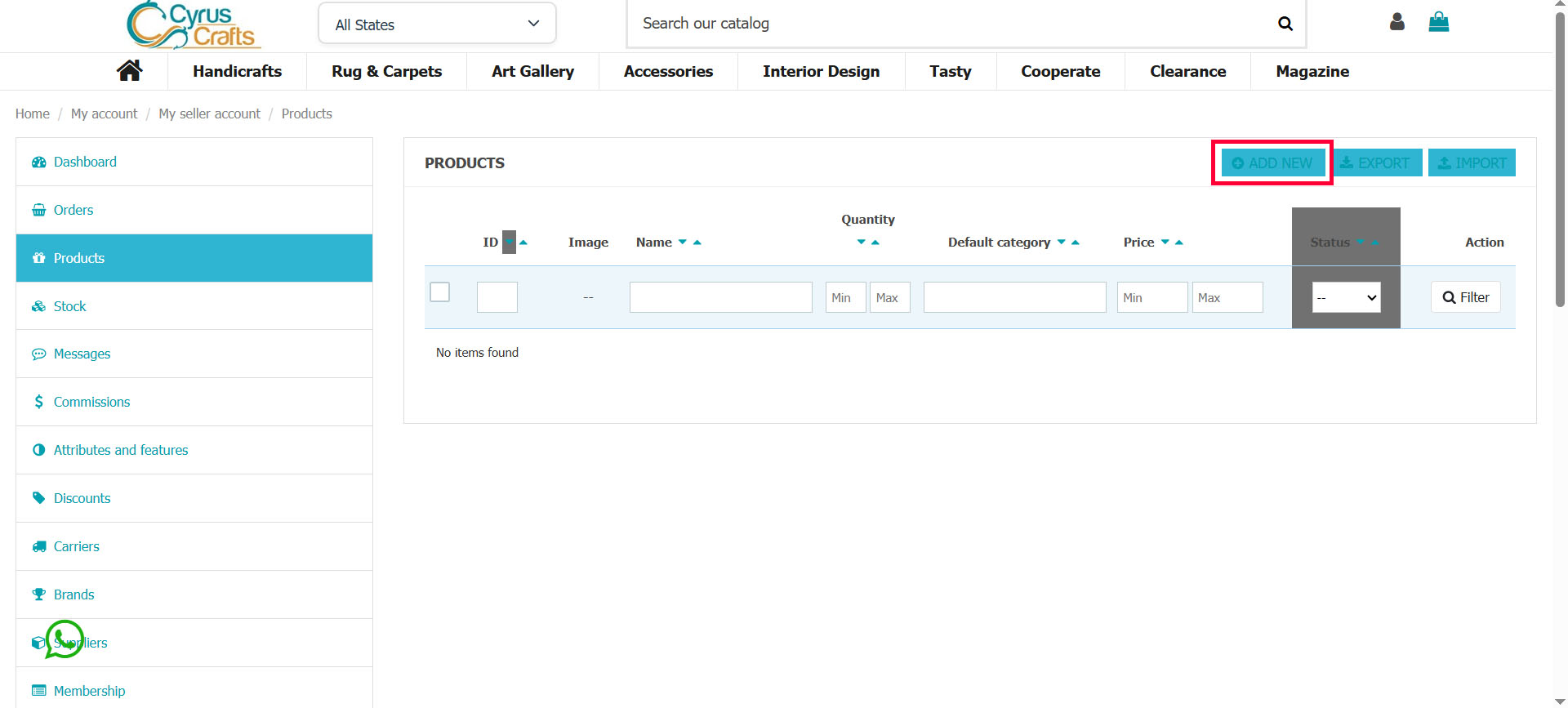
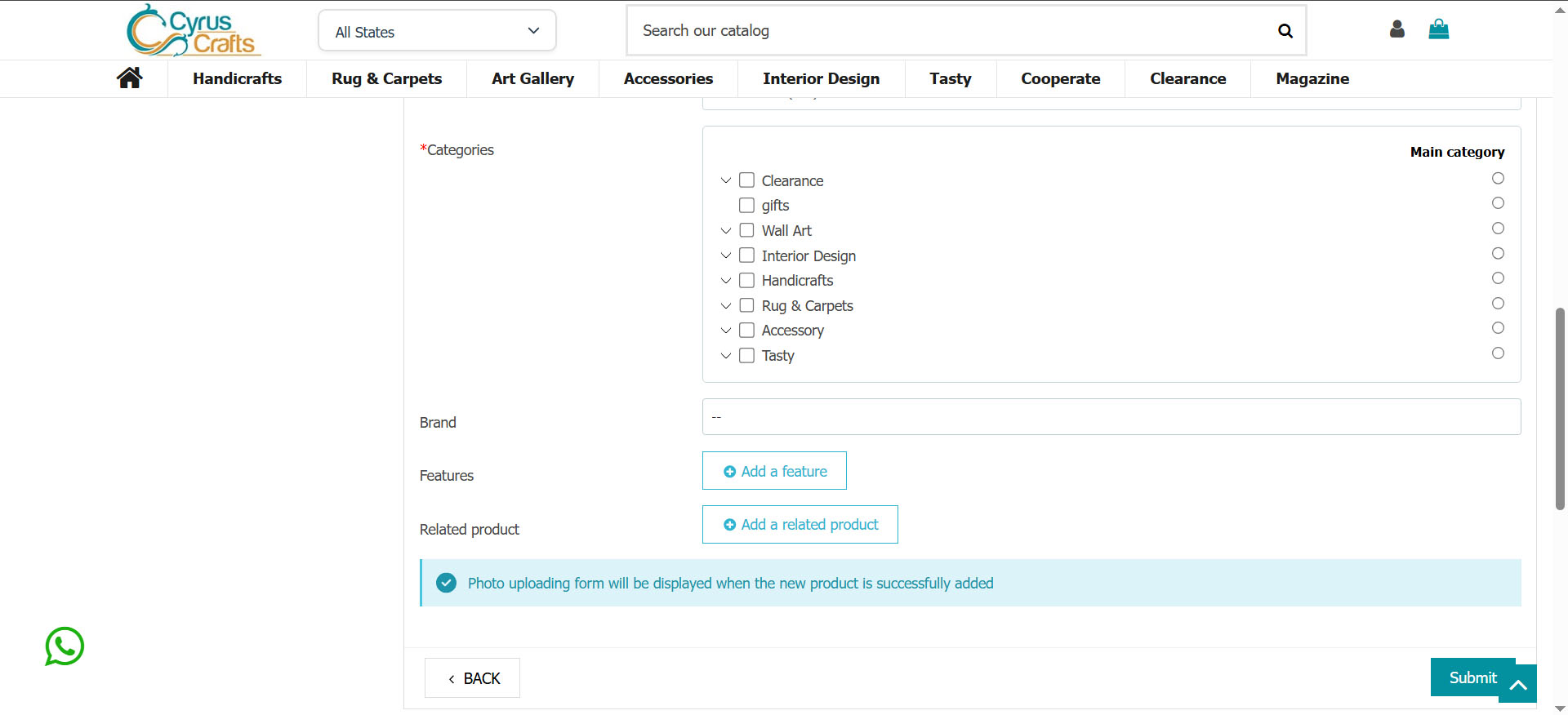
On the page that opens, fill in all the required product information completely. This includes the product title, images, summary, detailed description, category, and features.
Conclusion
By following the steps above, you can easily complete the registration process and set up your store on CyrusCrafts. All submitted information and products will be reviewed and approved by our team before being displayed on the website.
If you have any questions or need further assistance, you can contact our support team through the provided communication channels.
Thank you for your cooperation, and we look forward to a successful and fruitful partnership with you.